

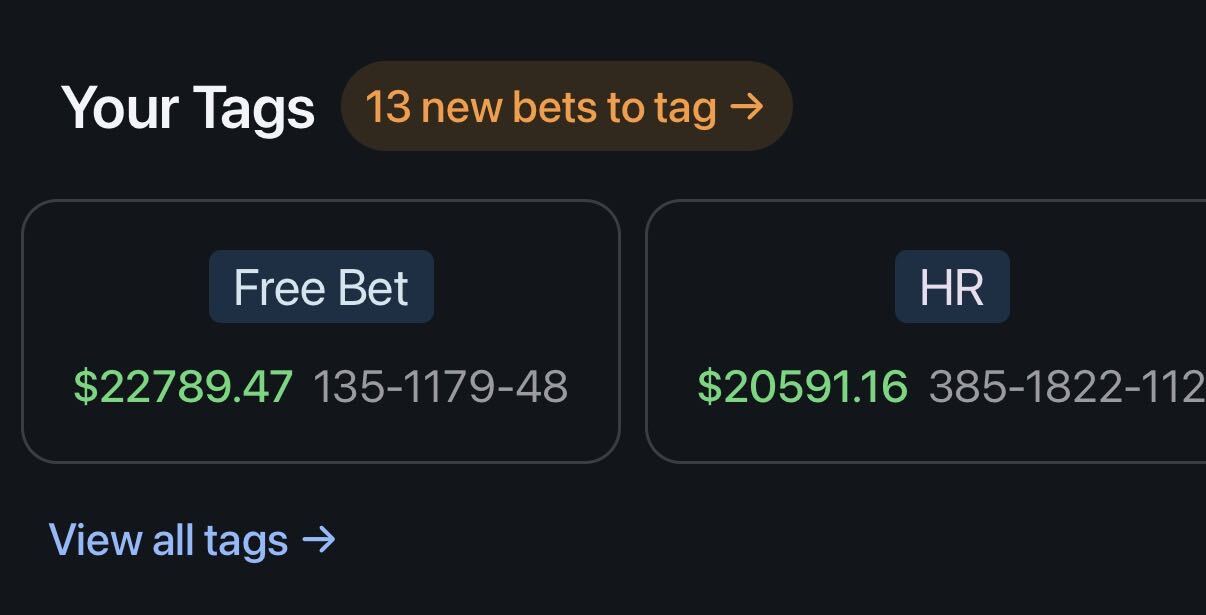
Your Summary tab has a Your Tags section with a card for each tag, showing its P/L and record. Check how your tags are doing without building a filter first. Tap View all tags to see the full list.
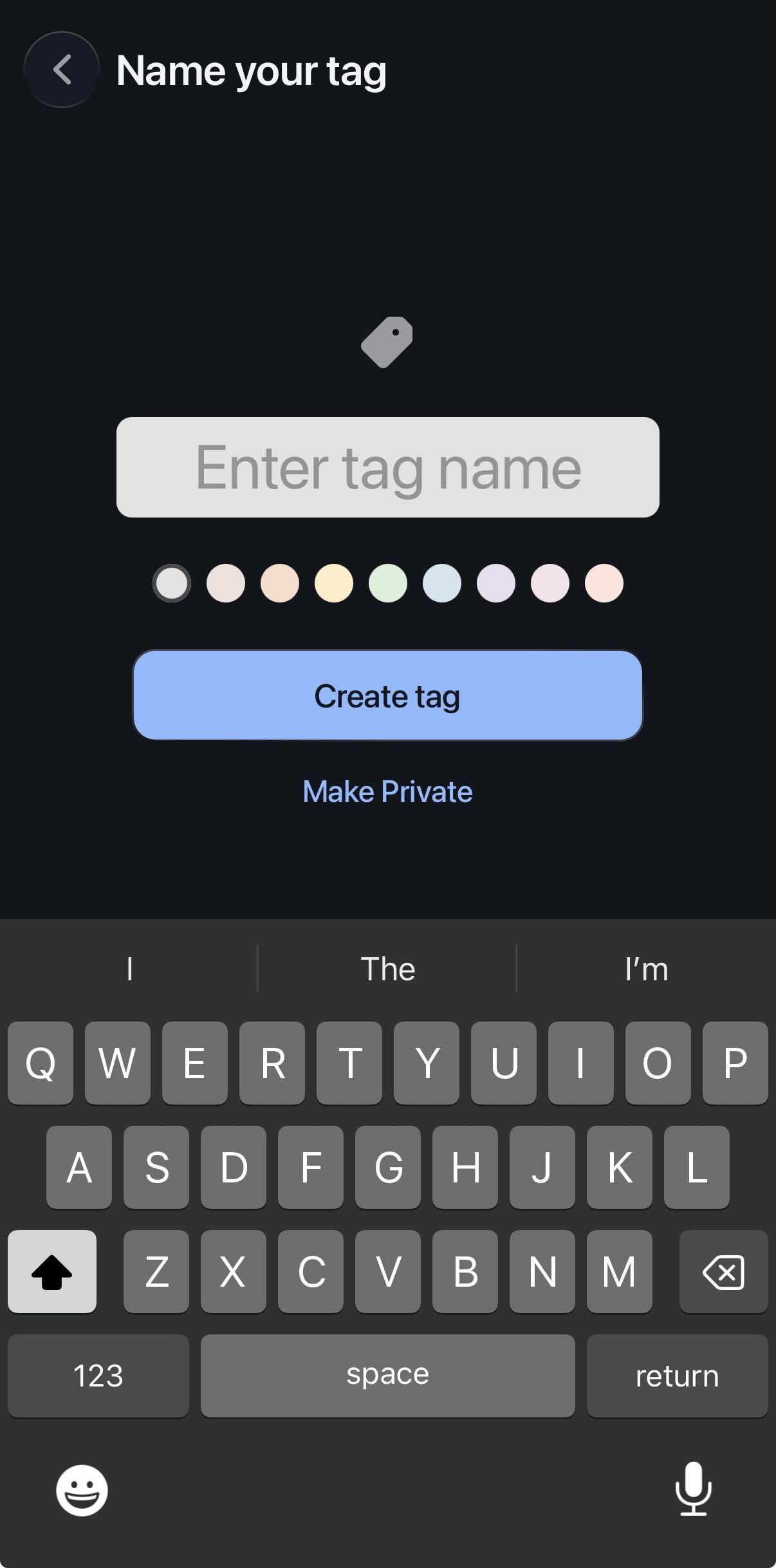
A tag is whatever you type, like "OddsJam," "DataBasedBets," or "Live." Give it one of nine colors so it's easy to spot. Want to keep a tag to yourself? Tap Make Private when you create it.
Every synced bet can be tagged, whenever you get to it.
Tag it the day you place it, after it settles, or months later. When new bets sync, Your Tags shows how many are waiting for a tag.
Going back through a stretch of bets? Select several and tag them together instead of one at a time.
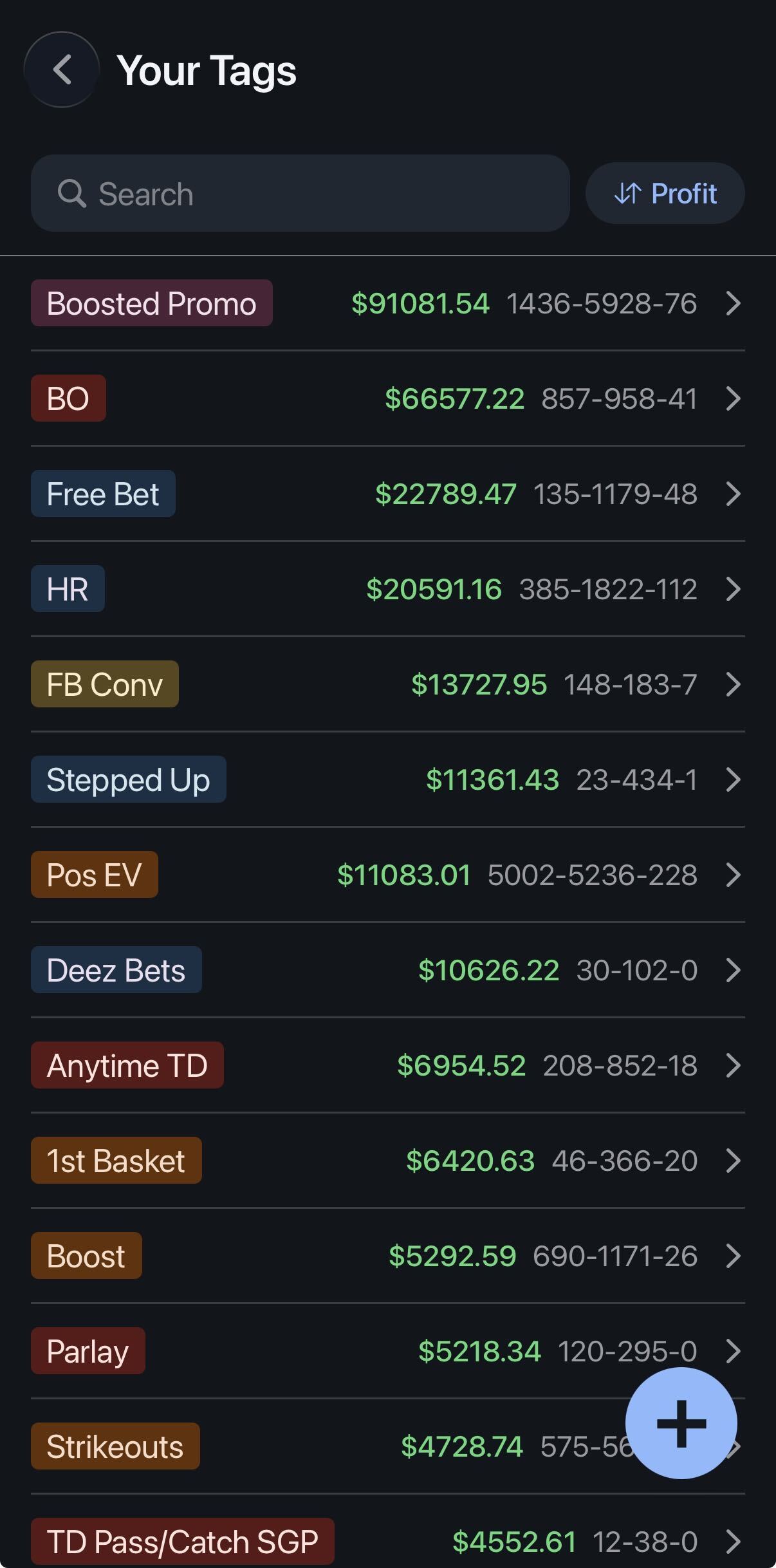
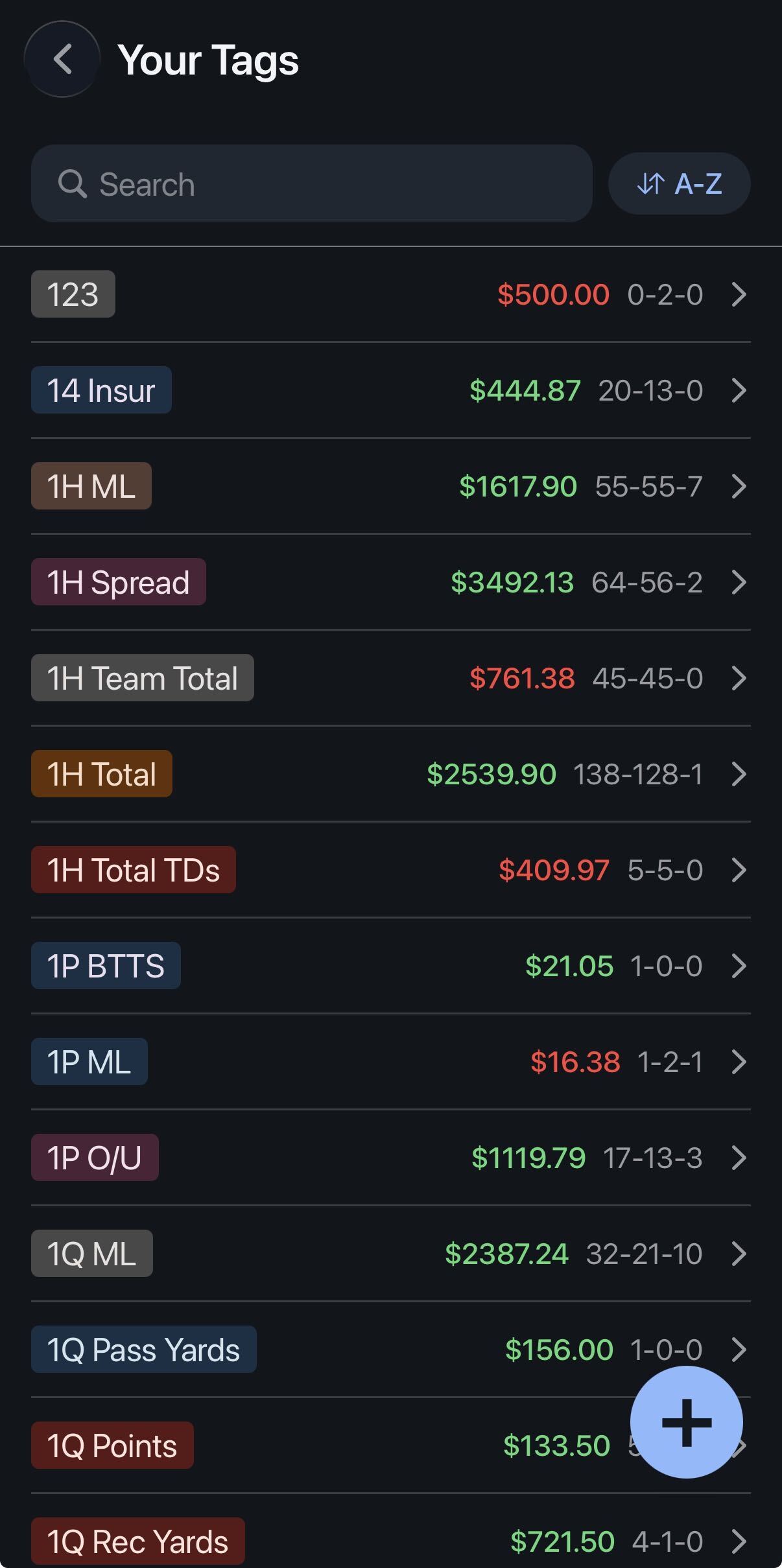
Every tag gets the same three numbers as the rest of Pikkit: profit and loss, ROI, and your record. On the Your Tags screen, sort by profit, most bets, or A-Z, or search for a tag by name.
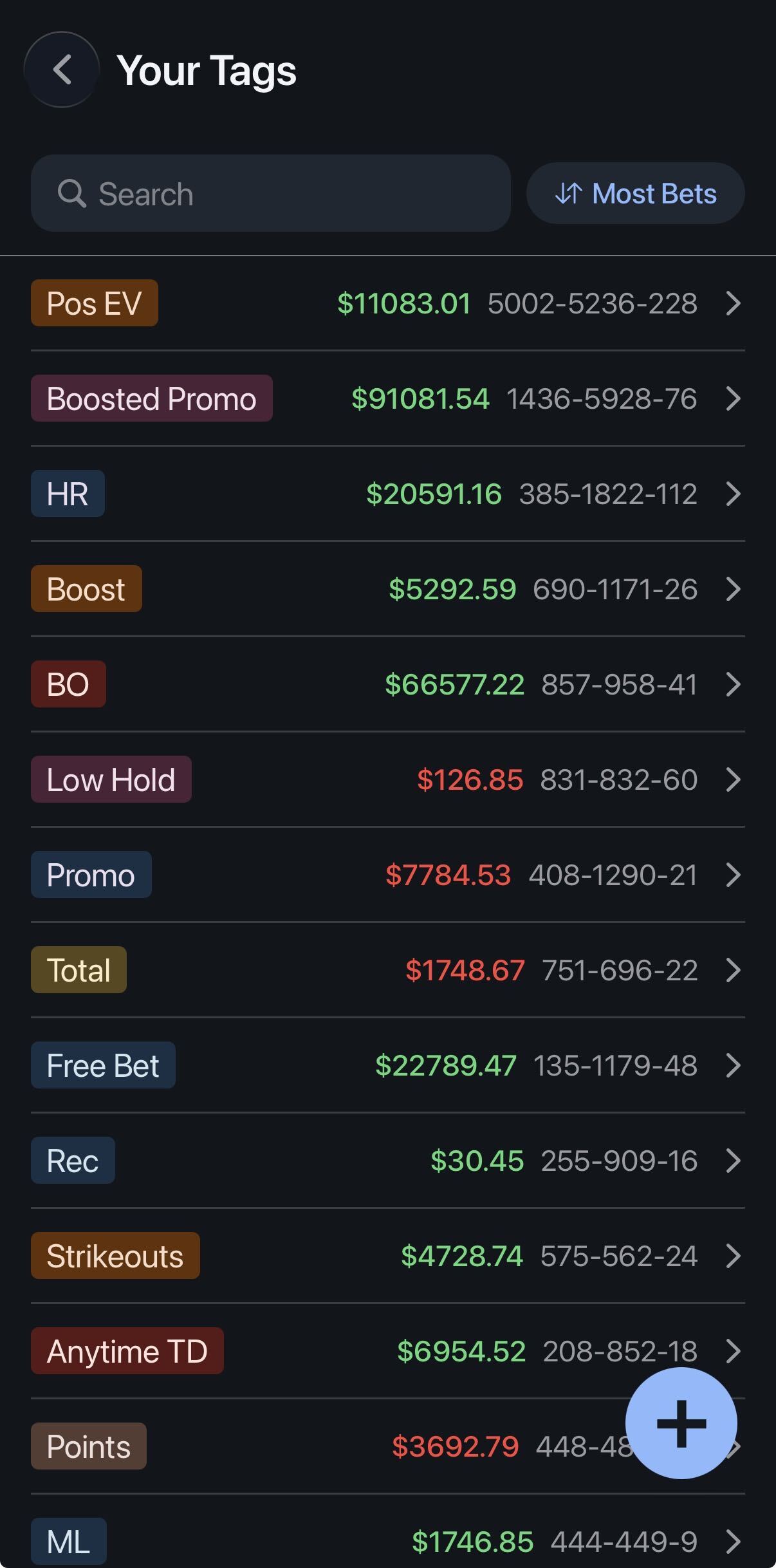
The free plan includes 2 tags. Pikkit Pro unlocks unlimited tags.
Your tags plug straight into Performance Center, so you can analyze them like any other slice of your betting.
Your own tags are one of the 11 filters in Performance Center. Pick a tag and the graph, P/L, ROI, and record update to just those bets. Stack it with other filters, like a tag plus a single sportsbook or league season.
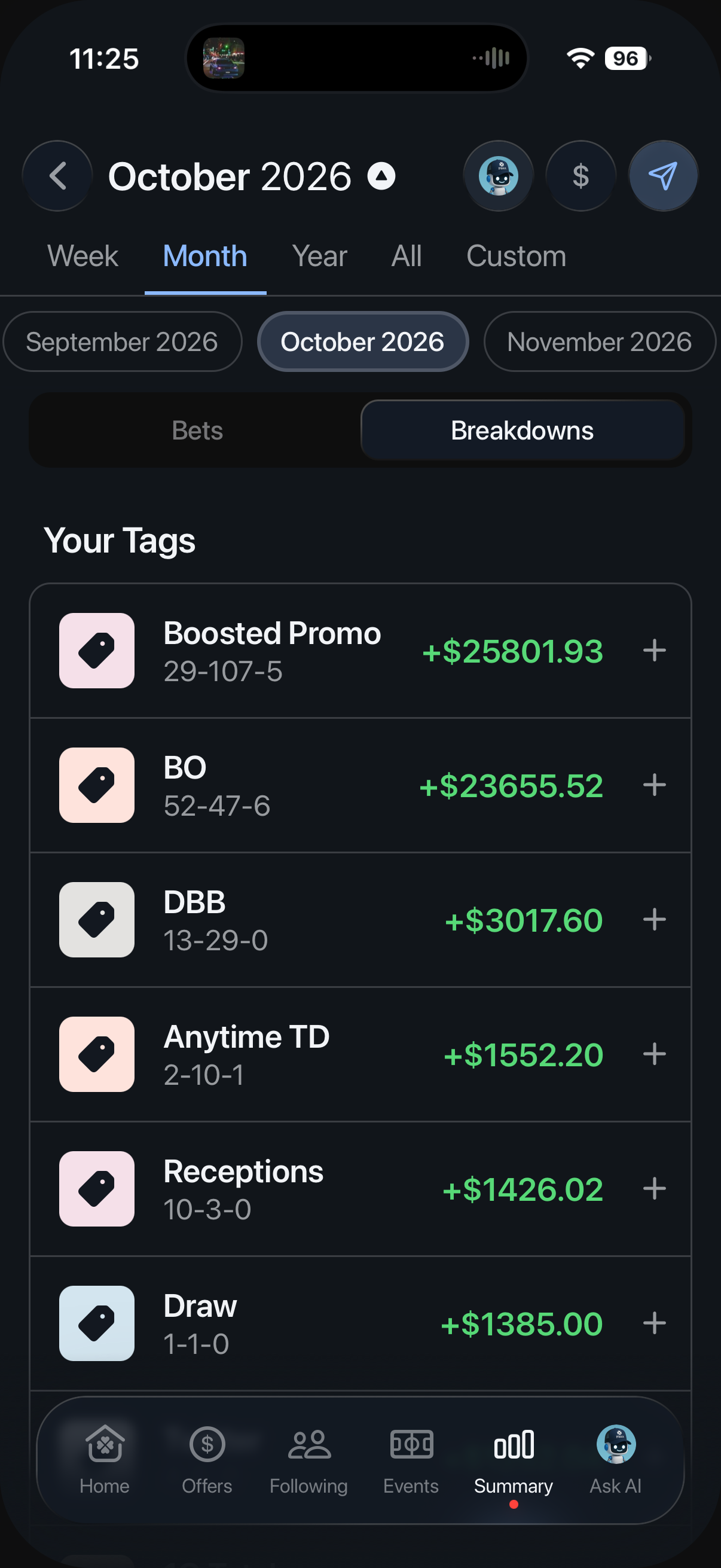
The Breakdowns tab lists your P/L for each tag in one place. Tap a tag and Performance Center opens filtered to it.
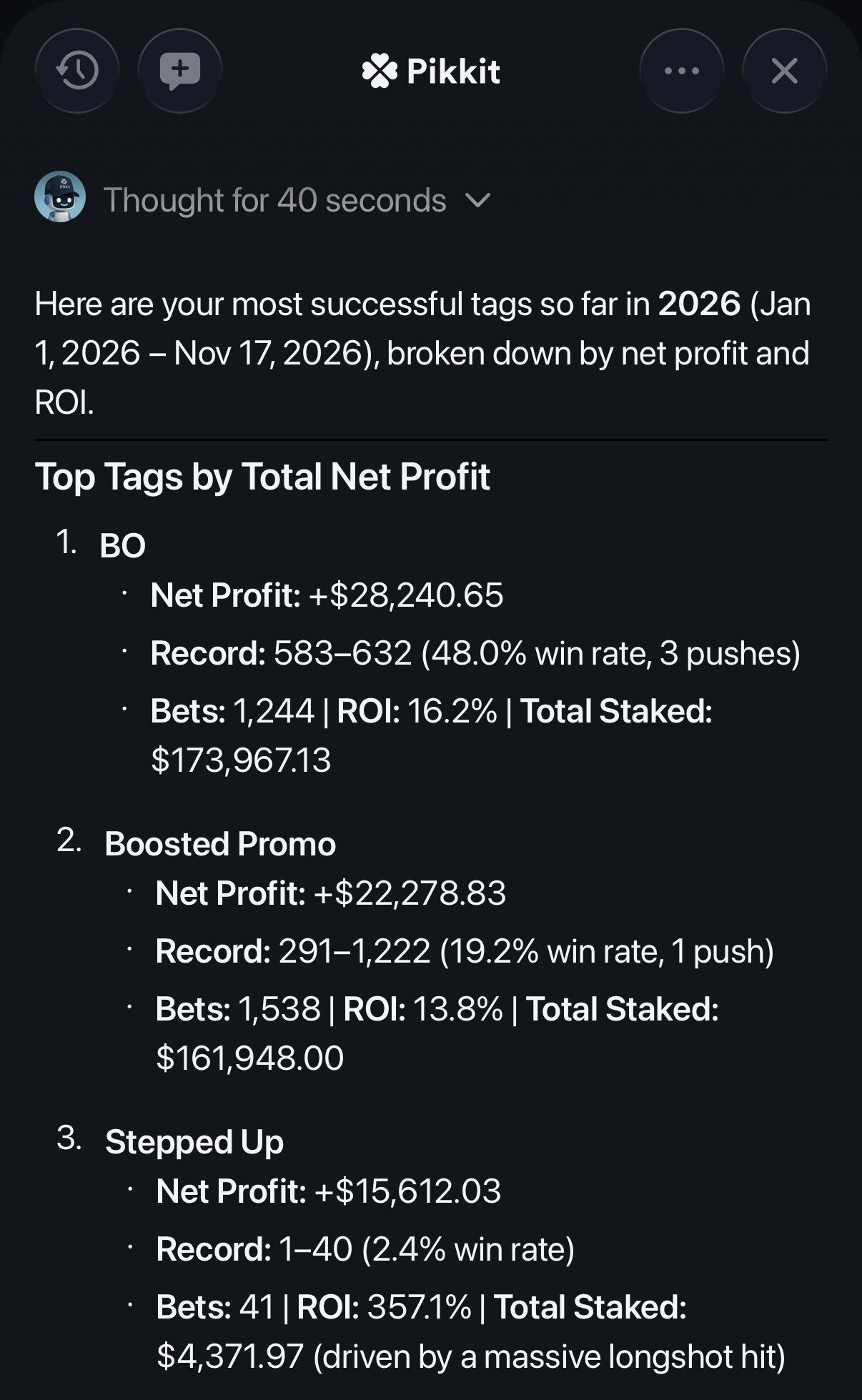
Pikkit AI can look through your tag history. Ask which tag has your best ROI, how your OddsJam bets did last month, or whether your live bets are actually profitable.

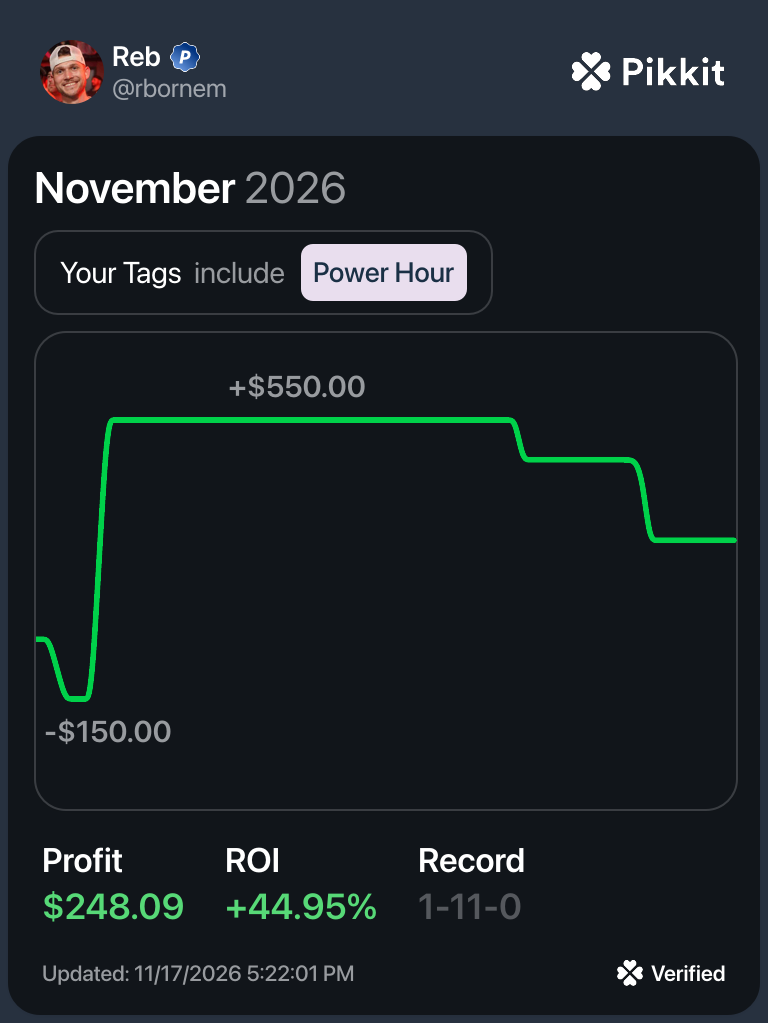
Filter Performance Center to a tag and tap share. Pikkit turns that graph into a card with the P/L, ROI, and record for the tag. The bets behind it synced straight from the sportsbook, so the people you share it with know the results are real.
1. Sync your sportsbooks. Open Pikkit and sync the books you bet with through BookSync.
2. Create a tag. On the Summary tab, tap View all tags in Your Tags, then tap +. Name your tag, pick a color, and tap Make Private if you want to keep it to yourself.
3. Tag your bets. Tap the new bets to tag prompt in Your Tags, or select several bets and tag them at once. Use any custom text, like "DataBasedBets" or "Live."
4. Check Your Tags. Sort by profit, most bets, or A-Z to see which tags are working.
5. Filter Performance Center by tag to see the graph, P/L, ROI, and record for that tag.
6. Open the Breakdowns tab to compare every tag at once.
7. Ask Pikkit AI about your tag history.
8. Tap share to post a verified card of a tag's results.
Getting the bets in: a spreadsheet needs every bet typed in by hand before you can label it. In Pikkit, your bets are already synced. You just add the tag.
Labeling in bulk: a spreadsheet means filling in a column row by row. Pikkit lets you tag several bets at once.
Getting the numbers: a spreadsheet needs a formula for every label. Pikkit shows the P/L, ROI, and record for every tag automatically.
Proving it: a spreadsheet screenshot proves nothing. A Pikkit card comes from synced bets, so it's verified.
Tags sit on top of the same synced bets as your full bet tracker.
Filter your graph and breakdowns by any tag in Performance Center.
Ask questions about your tag history in plain English with Pikkit AI.
See your day-by-day results in green and red on your Pikkit Calendar.
The bets you tag sync from 30+ sportsbooks through BookSync.
Yes. The free plan includes 2 tags. Pikkit Pro unlocks unlimited tags.
Yes. You can tag any synced bet at any point, whether it's still open, already settled, or months old.
No, Pikkit does not support manual bet entry. Every bet syncs from your sportsbooks through BookSync, so all stats are verified.
No. You add every tag yourself, so each one means exactly what you want it to.
Yes. Tap Make Private when you create a tag to keep it to yourself.
Yes. BookSync is read-only. Pikkit can see your bets and balance, but it can't place bets, move funds, or change anything in your account. Your login is encrypted, and your data is never sold.
